> For the complete documentation index, see [llms.txt](https://docs.usepylon.com/pylon-docs/llms.txt). Markdown versions of documentation pages are available by appending `.md` to page URLs; this page is available as [Markdown](https://docs.usepylon.com/pylon-docs/agents/support-agent/monitor-and-iterate.md).
# Monitor & Iterate
Inspect why the AI acted in a certain way, view analytics, and continue to improve your flywheel.
Each agent has a **Performance** section in its settings. Go to **Settings > AI controls > Agents**, open the agent, and use **Issue logs** and **Analytics**.
## Issue Log
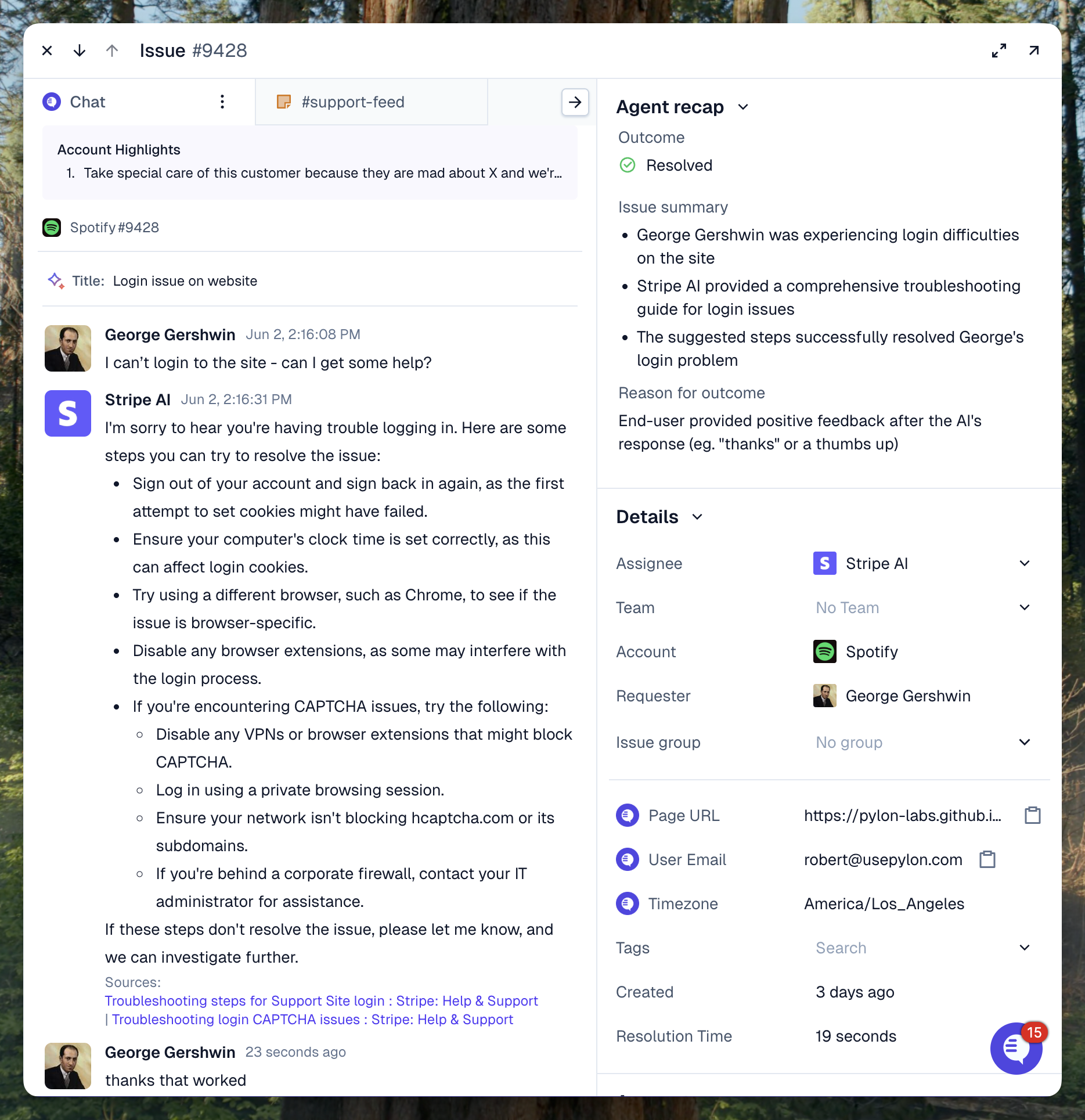
**Issue logs** lists every issue the agent has been assigned to, with its **Outcome**, **Reason**, whether the agent responded, and any AI feedback. Use it to see where the agent can be improved or better tuned.
## Analytics
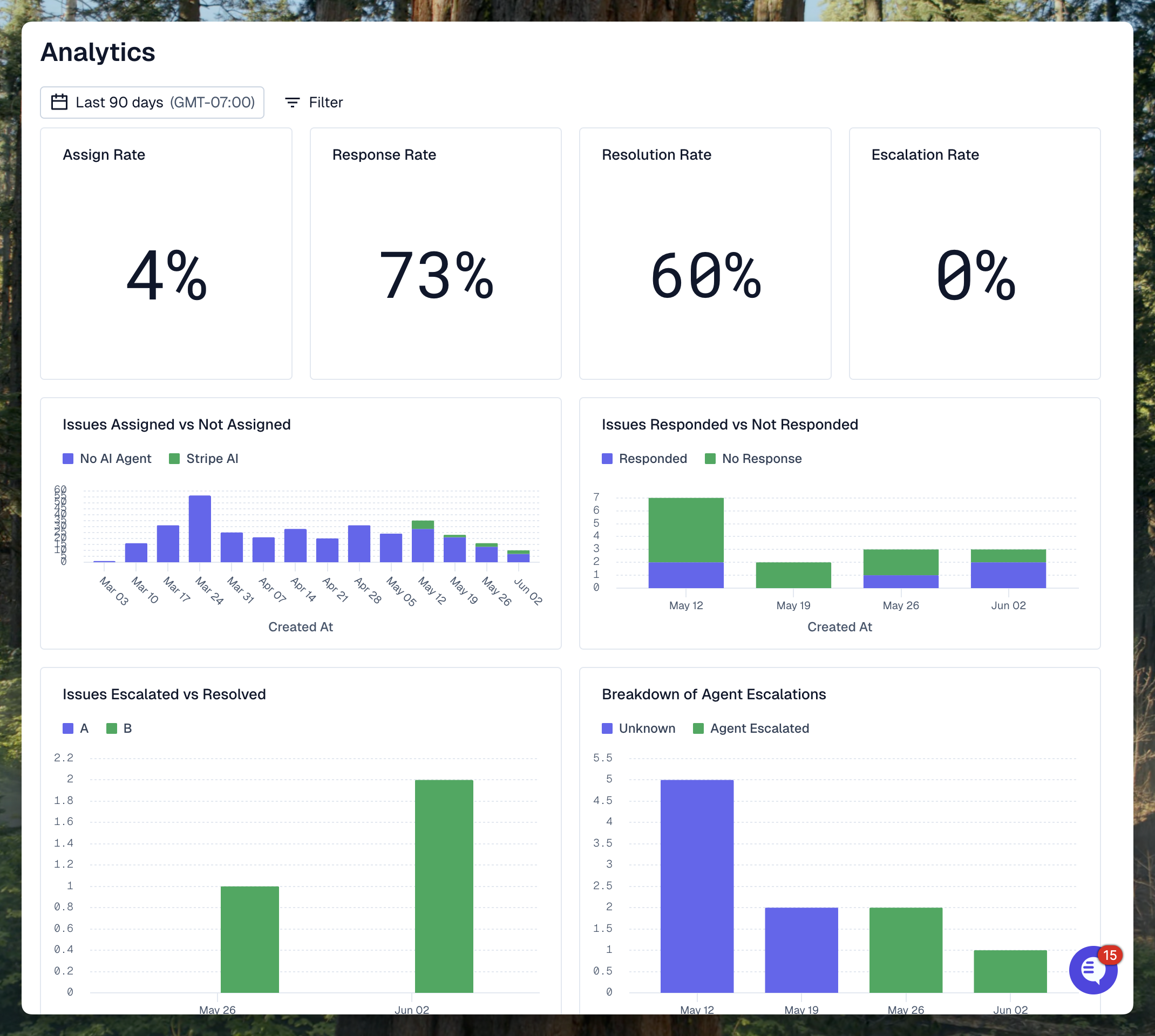
Measure your agent's performance throughout the funnel to keep expanding its coverage.
The agent's **Analytics** page shows the same charts as the [Support agent dashboard](/pylon-docs/reporting-and-analytics/default-dashboards.md#support-agent) under **Analytics**, filtered to this one agent. The Support agent dashboard combines all of your Support Agents.
## Metric definitions
Every Support Agent metric is a count of **issues**, not messages or conversations. Pylon tracks three things for each issue the agent is assigned to.
### Assigned
An issue counts as **assigned** if the agent was assigned to it at any point. It stays assigned even after it's reassigned to a teammate.
### Assisted
An assigned issue counts as **assisted** if the agent did something on it:
| Assist status | Meaning |
| ------------- | --------------------------------------------------------- |
| Responded | The agent sent at least one public reply to the customer. |
| Ran Runbook | The agent ran a runbook but didn't reply. |
| Both | The agent replied and ran a runbook. |
| No Assist | The agent was assigned but did neither. |
### Outcome
Each assigned issue has one current outcome. **Escalated** means the outcome is Reassigned or Unassigned.
| Outcome | What counts |
| --------------- | ------------------------------------------------------------------------------------------------------------------------------------------------------------------------------------------------------------------------------------- |
| **Resolved** | The issue moved to a Closed status while it was still assigned to the agent. This counts no matter who closed it: the agent, a teammate, or a trigger. It also counts if the customer stops replying (see "Customer drop-off" below). |
| **Reassigned** | The agent was removed from the issue and someone else was assigned. |
| **Unassigned** | The agent was removed from the issue and no one was assigned. |
| **In progress** | The agent is still working on the issue. |
The **Reason** column in Issue logs, and the **Breakdown of agent escalations** chart, explain each outcome:
| Issue logs | Dashboard | Meaning |
| ------------------------------ | ------------------------------ | ---------------------------------------------------------------------------------------------------- |
| User validated | Resolved | Resolved: the issue was closed while assigned to the agent. |
| User drop-off | Customer Dropoff | Resolved: the conversation stayed assigned to the agent with no new messages for 24 hours. |
| User escalated | Customer Escalated | Escalated: the customer asked for a human. |
| Agent escalated | Agent Escalated | Escalated: the agent didn't have enough information to respond, or couldn't respond on that channel. |
| Runbook escalated | Runbook Escalated | Escalated: a runbook told the agent to hand off. |
| Interrupted | Interrupted | Escalated: a teammate or trigger reassigned or unassigned the issue. |
| Agent error | Agent Error | Escalated: the agent hit an error and couldn't finish. |
| Conversing / Executing runbook | Conversing / Executing Runbook | In progress. |
**Customer drop-off:** If an issue is still assigned to the agent and has had no new messages for more than 24 hours, Pylon records it as Resolved with the drop-off reason. Pylon checks for this every few hours, so the outcome can update up to a few hours after the 24-hour mark. The issue's status doesn't change. If the customer replies later, the outcome goes back to In progress.
### Rates
**All issues** means every issue in the dashboard's date range and filters, whoever it's assigned to. On an agent's own Analytics page, the numerators count only that agent's issues, but **all issues** still covers your whole workspace.
| Metric | Numerator | Denominator |
| -------------------------------------------- | ---------------------------------------------------------- | ----------------------------------------------------------------------------------------------------------- |
| Assign rate | Issues assigned to the agent | All issues |
| Assist rate | Assigned issues the agent assisted | Assigned issues (**Assigned Tickets** chart and **Assist rate** tile) or all issues (**All Tickets** chart) |
| Resolution rate — **Assigned Tickets** chart | Assigned issues with a Resolved outcome | Assigned issues |
| Resolution rate — **All Tickets** chart | Assigned issues with a Resolved outcome | All issues |
| Resolution rate — **Resolution rate** tile | Assisted issues with a Resolved outcome | Assisted issues |
| Escalation rate — **Assigned Tickets** chart | Assigned issues that were Reassigned or Unassigned | Assigned issues |
| Escalation rate — **All Tickets** chart | Assigned issues that were Reassigned or Unassigned | All issues |
| Escalation rate — **Escalation rate** tile | Assisted issues that were Reassigned or Unassigned | Assisted issues |
| Satisfaction rate | CSAT responses scoring 4 or 5 on issues the agent resolved | All CSAT responses on issues the agent resolved |
Your workspace shows either the weekly **Support Agent Resolution Rate** charts or the single-number tiles, depending on its Support Agent version. Check the denominator before you compare two numbers. For the same issues, the tile's resolution rate is usually higher than the chart's, because the tile leaves out issues the agent never assisted.
Pylon has no separate deflection rate. To see the share of all incoming issues the agent handled without a teammate, use the resolution rate on the **All Tickets** chart.
### Time attribution
* Each issue counts toward the week, and the date range, in which the **issue was created**. It doesn't count toward the week in which it was resolved or escalated. The default range is the last 90 days.
* **Satisfaction rate over time** is grouped by the date the CSAT response was submitted.
* Outcomes show each issue's **current** state, so recent weeks keep changing. In-progress issues later resolve or escalate. A resolved issue goes back to In progress if the customer replies, or if it's reassigned back to the agent.
### Things to watch for
* Resolution rate and escalation rate don't add up to 100%. Issues that are still in progress stay in the denominator, and so do assigned issues the agent never assisted (except on the tiles).
* A teammate or trigger closing an issue that's still assigned to the agent counts as a resolution by the agent. To keep these out of the agent's numbers, reassign the issue before you close it.
* Removing the agent from an issue that's already closed doesn't change its outcome.
* The satisfaction charts only appear if one of your triggers sends a [CSAT survey](/pylon-docs/support-workflows/csat.md).
---
# Agent Instructions
This documentation is published with GitBook. GitBook is the documentation platform designed so that both humans and AI agents can read, navigate, and reason over technical content effectively. Learn more at gitbook.com.
## Querying This Documentation
If you need additional information that is not directly available in this page, you can query the documentation by asking a question.
Perform an HTTP GET request on the following URL with the `ask` and `goal` query parameters:
```
GET https://docs.usepylon.com/pylon-docs/agents/support-agent/monitor-and-iterate.md?ask=&goal=
```
`ask` is the immediate question: it should be specific, self-contained, and written in natural language.
`goal` is what the user is ultimately trying to achieve, the reason they need the answer. Sharing it helps GitBook give you a better, more relevant answer. A goal is most helpful when it describes the outcome the user wants rather than restating the question. For example, with `ask=how do I create an API token`, a goal like `automate deployments from our CI pipeline` lets GitBook tailor the answer to that use case.
The response will contain a direct answer to the question and relevant excerpts and sources from the documentation.
Use this mechanism when the answer is not explicitly present in the current page, you need clarification or additional context, or you want to retrieve related documentation sections.