> For the complete documentation index, see [llms.txt](https://docs.usepylon.com/pylon-docs/llms.txt). Markdown versions of documentation pages are available by appending `.md` to page URLs; this page is available as [Markdown](https://docs.usepylon.com/pylon-docs/platform/ai-reports.md).
# AI Reports
Automatically generate and send summaries and insights to specified destinations
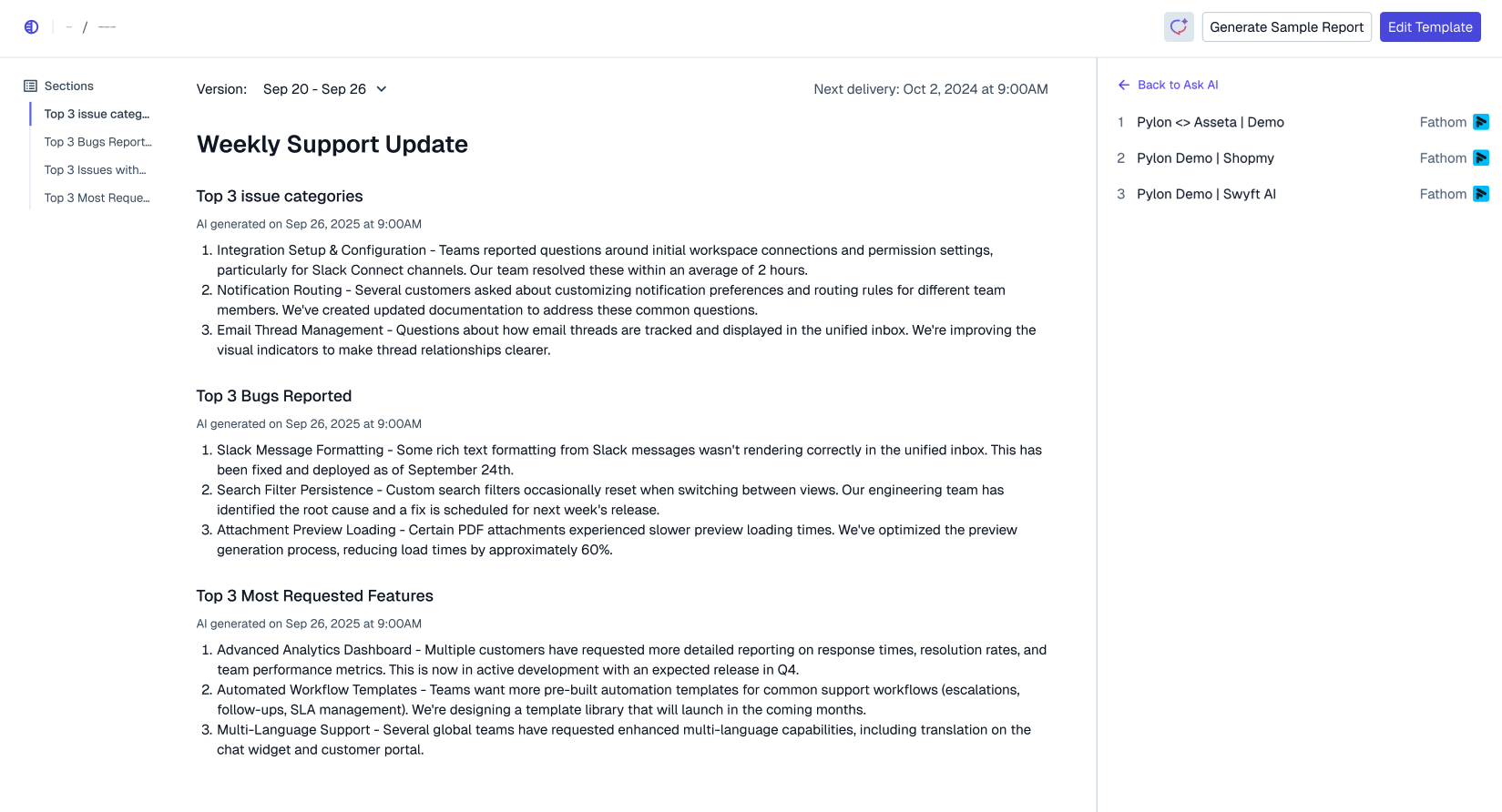
AI Reports generate summaries and insights from your Pylon data and deliver them through Slack, Microsoft Teams, or email. Use them to surface escalated issues, product feedback hotspots, accounts with negative sentiment interactions, and more.
Open **Analytics > Reports** and click **Create Report**. You can also open the [Reports page](https://app.usepylon.com/analytics/reports) directly.
## Create report content
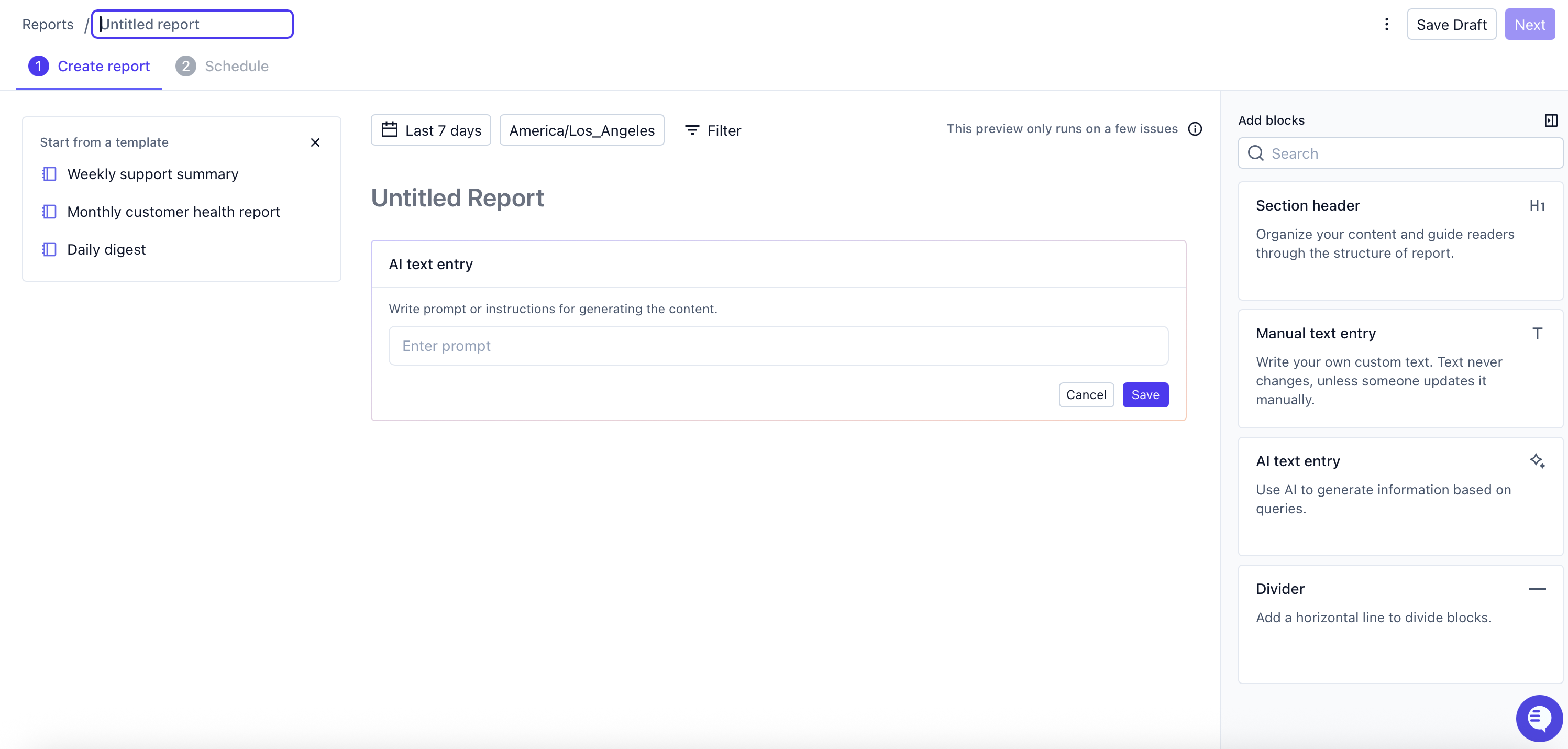
On **Create report**, give the report a title and choose its data time range, timezone, and filters. Add AI insight sections with instructions for what to summarize and how to format the result. Use **Data sources** to choose from **Issues**, **Calls**, and **Manual entries**. Reports synthesize the matching data from those sources, rather than every record in your workspace.
You can add section headers, static text, and dividers to organize the report. Use **View templates** to start from an existing template, or duplicate an existing report to reuse its configuration.
## One-off or recurring
On **Schedule**, choose:
* **One-off**: generate a report once with **Generate Report**. Choose a relative **Report date range**, or **Custom dates** for a specific period. Custom dates must cover completed days, and the start date can't be more than one year ago.
* **Recurring**: choose a start time and publish the report with **Publish**. The schedule starts report generation; delivery happens after generation finishes.
Recurring frequency follows the time range selected on **Create report**:
| Data time range | Repeats |
| --------------- | -------------- |
| Last 1 day | Daily |
| Last 7 days | Every 7 days |
| Last 1 month | Monthly |
| Last 3 months | Every 3 months |
Daily reporting and additional reports depend on your workspace's plan. Contact your account team if an option is unavailable.
### Schedule details
Use **Start on** to choose a future generation date and time. Check the timezone beside the report's data time range and confirm the displayed start time after changing it.
For a daily schedule starting on a weekday, choose **every day** or **on weekdays only**. For monthly schedules, use a numbered day; when the start date is the last day of a month, you can choose **the last day** instead. A numbered day after the 28th only runs in months that contain that day.
Relative data ranges end at the end of the previous day in the report's timezone. For a weekday-only **Last 1 day** report generated on Monday, the range includes Friday through Sunday.
## Delivery destinations
The available delivery options depend on your connected integrations:
| Option | Setup |
| -------------------------- | -------------------------------------------------------------------------------------------------------------- |
| Channels — Slack | Connect Slack, then choose an available Slack destination. |
| Channels — Microsoft Teams | Connect Microsoft Teams, then choose an available Teams channel. |
| Email | Connect an email sender, select it under **Send report from**, then select teammates under **Send report to**. |
**Email** appears when Pylon has an email sender available. You must choose a sender and at least one recipient before publishing or generating an email report. The recipient picker lists your teammates' email addresses and supports selecting multiple recipients.
Delivered insights include citations and a link to view the report in Pylon.
## Manage reports and access
Open a report to review generated results or edit its configuration. **Unpublish** pauses a recurring report; **Publish** enables it again. You can duplicate a report from its menu to start a separate configuration.
Viewing reports requires Reports read permission. Creating, editing, publishing, duplicating, and generating reports requires Reports write permission. Availability and the number of report configurations you can create depend on your workspace's plan — contact your account team for details.
---
# Agent Instructions
This documentation is published with GitBook. GitBook is the documentation platform designed so that both humans and AI agents can read, navigate, and reason over technical content effectively. Learn more at gitbook.com.
## Querying This Documentation
If you need additional information that is not directly available in this page, you can query the documentation by asking a question.
Perform an HTTP GET request on the following URL with the `ask` and `goal` query parameters:
```
GET https://docs.usepylon.com/pylon-docs/platform/ai-reports.md?ask=&goal=
```
`ask` is the immediate question: it should be specific, self-contained, and written in natural language.
`goal` is what the user is ultimately trying to achieve, the reason they need the answer. Sharing it helps GitBook give you a better, more relevant answer. A goal is most helpful when it describes the outcome the user wants rather than restating the question. For example, with `ask=how do I create an API token`, a goal like `automate deployments from our CI pipeline` lets GitBook tailor the answer to that use case.
The response will contain a direct answer to the question and relevant excerpts and sources from the documentation.
Use this mechanism when the answer is not explicitly present in the current page, you need clarification or additional context, or you want to retrieve related documentation sections.